Reach your Digitalizard IPTV account with our all-inclusive 2025 login tutorial. Master authentication on every device and fix common account entry challenges.
Finding Your Digitalizard Account Credentials
Finding your Digitalizard login credentials is necessary before access. Look for them here:
Welcome Email Check
Shortly after buying, your Digitalizard account credentials will be delivered in your welcome email:
- Username: Usually your email or a custom username
- Password: Auto-generated or chosen during signup
- Server URL: The streaming server address (e.g., http://server.Digitalizard.com:8080)
- Portal URL: Alternative access point for some devices
Customer Portal Access
When the welcome email cannot be found:
- Visit the Digitalizard Customer Portal
- Enter your email to reset credentials
- Check your spam folder for the reset email
- Contact support if email doesn't arrive within 5 minutes
Account Verification
Make sure these conditions are met before logging in:
- Your subscription is active (check expiry date)
- Payment has been processed successfully
- Your account isn't locked due to failed login attempts
Web Portal Login Instructions
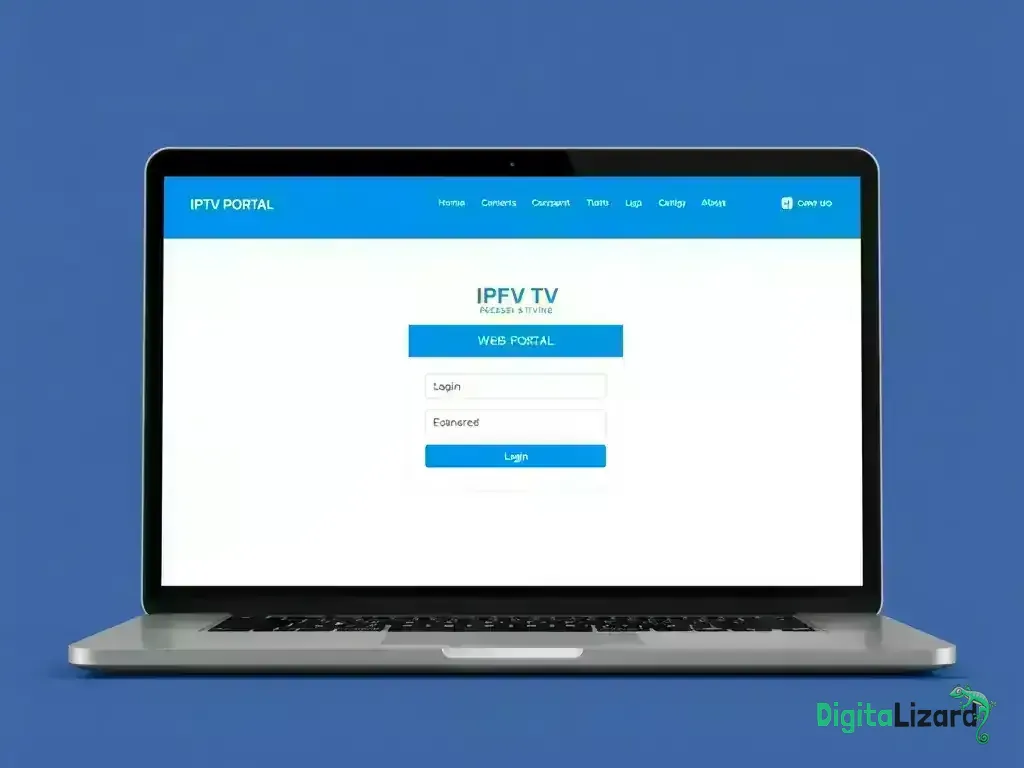
The Digitalizard online platform offers complete control over your account:
Step-by-Step Web Login
- Open your web browser and navigate to Digitalizard.com/login
- Enter your username in the first field
- Type your password in the second field
- Click "Login" or press Enter
- Wait for the dashboard to load (usually 2-5 seconds)
Web Portal Features
After web authentication, these features become available:
- Live Channels: Browse and stream all available channels
- VOD Library: Access movies and TV shows on demand
- Account Settings: Update profile and preferences
- Subscription Management: View expiry and renewal options
- Support Tickets: Create and track support requests
Browser Compatibility
For best results, use Digitalizard's web portal with:
- Chrome 90+ (recommended)
- Firefox 88+
- Safari 14+
- Edge 90+
Mobile App Login (iOS & Android)
Access Digitalizard on portable devices using our tailored applications:
Installing the Mobile App
For iOS (iPhone/iPad):
- Open the App Store
- Search for "Digitalizard IPTV"
- Tap "Get" to download and install
- Open the app once installed
For Android:
- Open Google Play Store
- Search for "Digitalizard IPTV"
- Tap "Install" to download
- Launch the app from your home screen
Mobile App Login Process
- Launch the Digitalizard mobile app
- Select "Login with Existing Account"
- Enter your username
- Enter your password
- Input the server URL if prompted
- Tap "Login" to access your account
Mobile-Specific Features
- Offline Downloads: Save content for offline viewing
- Picture-in-Picture: Continue watching while using other apps
- Chromecast Support: Stream to your TV
- Push Notifications: Get alerts for new content
Smart TV and Streaming Device Login
Experience Digitalizard on larger displays with apps designed for specific devices:
Smart TV Login
Samsung Smart TV:
- Press the Smart Hub button on your remote
- Navigate to Apps
- Search for "Digitalizard IPTV"
- Install and launch the app
- Enter your credentials using the on-screen keyboard
LG Smart TV:
- Press the Home button
- Go to LG Content Store
- Search and install Digitalizard app
- Login with your account details
Streaming Device Login
Amazon Fire TV/Firestick:
Refer to our Fire TV Setup Guide containing complete directions.
Android TV:
Look at our Android TV Setup Guide for sequential assistance.
Apple TV:
Follow along with our Apple TV Setup Guide for iPhone and iPad users.
Device-Specific Tips
- Use your TV remote's voice search to find the app quickly
- Connect a USB keyboard for easier text entry
- Enable "Remember Me" to avoid frequent logins
- Update your device firmware for best performance
Common Login Issues and Solutions
Can't log in? Here are widespread problems with solutions:
Invalid Credentials Error
Problem: Alert showing "Invalid login details"
Solutions:
- Double-check spelling (case-sensitive)
- Copy and paste credentials from welcome email
- Reset password via customer portal
- Ensure no extra spaces before/after credentials
Connection Timeout
Problem: Software crashes showing "Network timeout"
Solutions:
- Check your internet connection speed
- Verify server URL is correct
- Try switching between WiFi and mobile data
- Restart your router/modem
Account Locked
Problem: Notice stating "Brief account restriction"
Solutions:
- Wait 15 minutes and try again
- Contact support to unlock immediately
- Use password reset to regain access
Server Not Found
Problem: "Server missing" or "Connection impossible"
Solutions:
- Verify server URL from welcome email
- Check if Digitalizard servers are undergoing maintenance
- Try alternative server URLs if provided
- Disable VPN if it's blocking connection
App Crashes on Login
Problem: Program exits when trying to sign in
Solutions:
- Clear app cache and data
- Update to the latest app version
- Reinstall the app completely
- Check device storage space
Login Successfully and Enjoy Digitalizard
These thorough login guidelines will enable you to access Digitalizard on any device. Be sure to remember these crucial points:
Quick Tips for Success:
- Save your credentials securely for future use
- Use the official Digitalizard apps only
- Keep your apps updated for best performance
- Bookmark the web portal for quick access
- Enable two-factor authentication if available
Need Additional Help?
If logging in continues to be an issue, our 24/7 support team is available to assist. Reach out to us through:
- Live Chat on our website
- Email: [email protected]
- Phone: 1-800-Digitalizard
- FAQ Section for self-help
When you’re logged in, explore our Best 2026 Guide to explore every feature and get the most out of your Digitalizard plan!